Eric Bergman-Terrell's Blog
For the longest time I've wanted a weather app that displayed historical weather data as easily as current weather and predictions. I've really wanted this after every rain. Here in southwest Colorado, rain is scarce and coveted!
I never found such an app, so I wrote my own. Since I built it with the beautiful Avalonia framework, it's available for multiple platforms. Current, there are Windows (Intel/AMD 64-bit) and Linux versions (Intel/AMD 64-bit, ARM 64-bit).
You will need to install .NET Desktop Runtime 10 before installing EBT Weather.
If you want a Windows version for ARM, or an OSX version, and are willing to help test it, let me know.
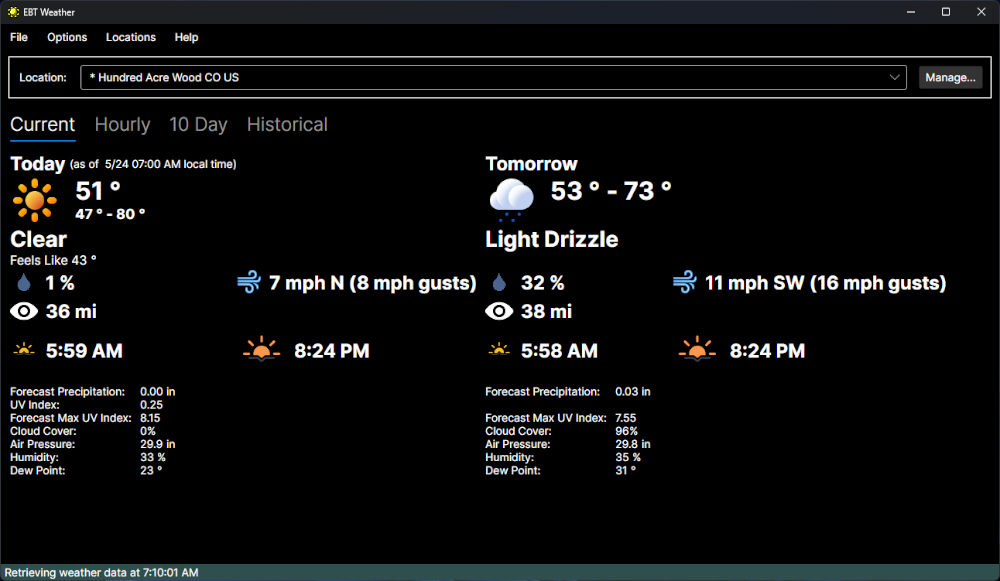
Current Weather:
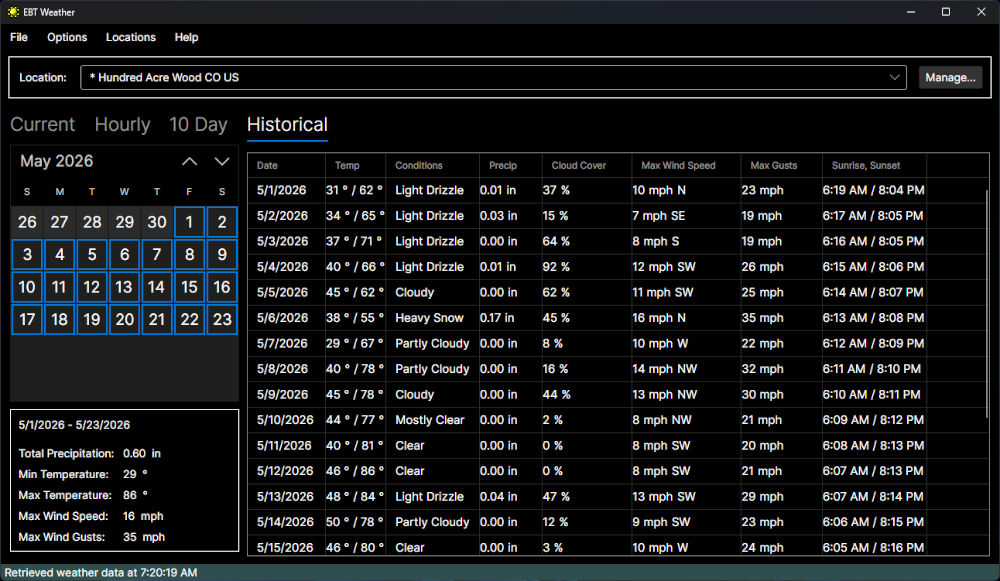
Historical Weather:
EBT Weather delivers current weather, predictions, and historical weather directly to your desktop computer:
- Current Weather
- Hourly Predictions
- Daily Predictions
- Historical Weather Data
With EBT Weather, displaying historical weather data is as easy as accessing current weather. Just click on the "Historical" tab and select a date range.
EBT Weather displays weather data from a list of your locations. Search for locations, or specify an exact location, down to the arc second.
EBT Weather is available for Windows and Linux. And of course, EBT Weather is open source!
EBT Weather is built on the Avalonia framework. EBT Weather requires .NET Desktop Runtime 10.
EBT Weather gets its weather and location data from open-meteo.
You can download EBT Weather here.

Reader Comments
Comment on this Blog PostRecent Posts
| Title | Date |
| EBT Weather is now available for Windows and Linux | May 30, 2026 |
| Node.js + Express: How to Block Requests by User-Agent Headers | January 7, 2026 |
| Vault 3 is Now Available for Windows on ARM Machines! | December 13, 2025 |
| Vault 3: How to Include Outline Text in Exported Photos | October 26, 2025 |
| .NET Public-Key (Asymmetric) Cryptography Demo | July 20, 2025 |
| Raspberry Pi 3B+ Photo Frame | June 17, 2025 |
| EBTCalc (Android) Version 1.53 is now available | May 19, 2024 |